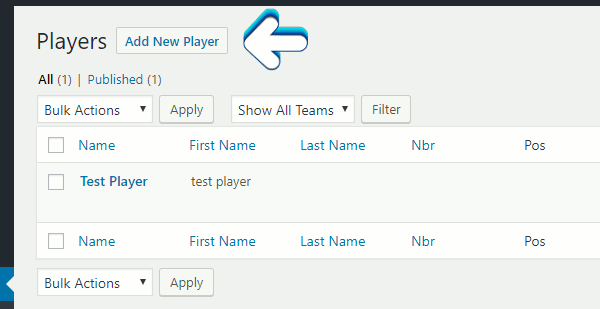
The next section Manage Players is where you can add, edit, or delete players on teams. To add a new player, click the Add New Player button up top.
The page it brings you to is pretty self-explanatory. The first input field is the title. You may want to make this the player's full name or the team the player is on. Below that is just all the input fields for the player's stats and info.

A few key points worth discussing is how to add the player to your desired team once you filled out all the player's data. On the right-hand side, you will see a section called Manage Teams. Click on the input field and start typing in the team name you want the player to be on. You will see a drop-down menu of the teams you made previously that match the letters you're typing in. Select the team the player is on.
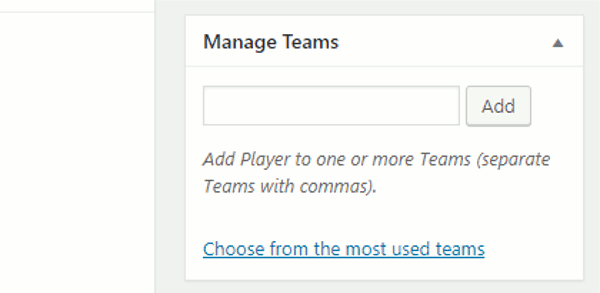
A few key points worth discussing is how to add the player to your desired team once you filled out all the player's data. On the right-hand side, you will see a section called Manage Teams. Click on the input field and start typing in the team name you want the player to be on. You will see a drop-down menu of the teams you made previously that match the letters you're typing in. Select the team the player is on.
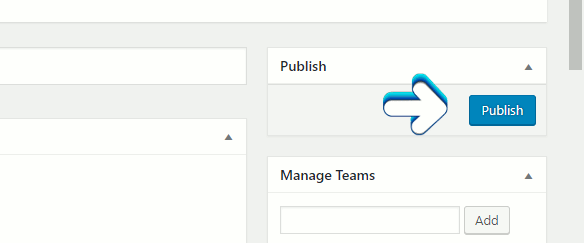
Once all done, make sure to click the blue Publish button.
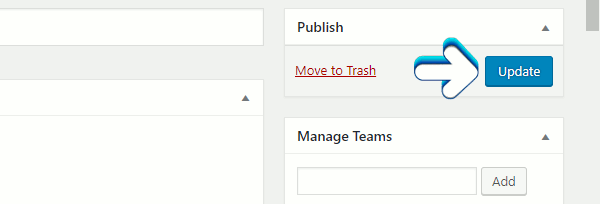
In the future whenever you make edits to a player, make sure you click the blue Update button.